Print equipment ID labels from Excel
Do this in the free label maker: app.mylabelmaker.com. No signup. Design the label, then print to a Zebra or download PNG, PDF, or ZPL.
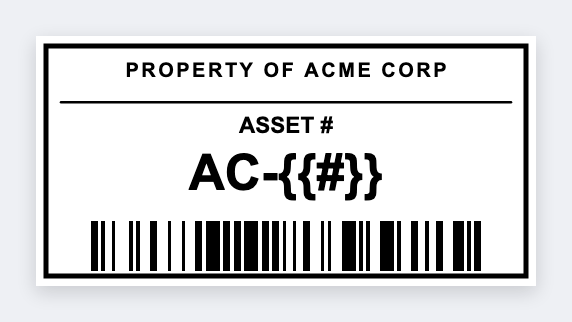
You can print equipment ID labels from Excel in the free label maker. Export asset id and location, set 2x1, map {{asset}} and a barcode, then print. No signup. Don't print passwords, BitLocker keys, or admin logins on a visible tag.
Good to know: Don't print passwords, BitLocker keys, or admin logins on a visible tag.
How to make equipment ID labels from a list
- Open https://app.mylabelmaker.com. No signup. Set 2x1 or 2x3.
- Export asset id, location, and optional user.
- Map {{asset}}, {{loc}}, and a barcode on the id.
- Preview two assets. Print the cart.
Laptops and carts
Same layout as other asset tags from Excel. Save JSON. Add a row when a new device arrives.
Print or save
If you have a Zebra, print from this computer with Browser Print at the printer's DPI. If you don't, download PNG, JPEG, SVG, PDF, or ZPL. JSON keeps the layout so you can open it later.