Print return address labels from Excel
Do this in the free app: app.mylabelmaker.com. No signup. Design the label, then print on a Zebra or download PNG / PDF / ZPL.
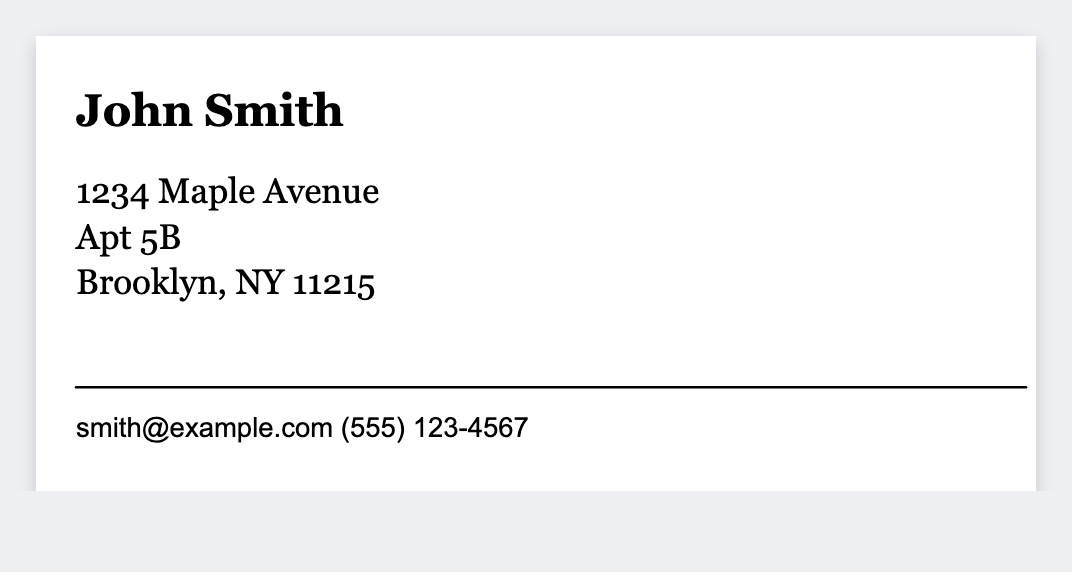
You can skip the Word mail merge. Design a FROM block, or map {{name}} {{street}} {{city}} {{st}} {{zip}} if you have several return addresses. Open the free label maker and start. No signup.
Good to know: This is not postage. USPS/UPS/FedEx labels with paid postage stay in the carrier file.
How to print return address labels from Excel
- Open https://app.mylabelmaker.com. No signup. Set the size of your stock.
- For one address: type the FROM block once. For a list: map {{name}} {{street}} {{city}} {{st}} {{zip}}.
- If you loaded a sheet, preview row 1 and a row near the end.
- Print the stack on a Zebra, or download PNG, PDF, or ZPL.
Thermal vs sheet
Avery 5160 is a laser sheet. If you have a Zebra, use roll stock that matches the artboard so you do not cut sheets.
Print or save
Got a Zebra? Print from the browser with Browser Print, at the printer's DPI. Otherwise download PNG, JPG, SVG, PDF, or ZPL. JSON keeps the label you can open later.
Print these return addresses
One FROM block, or a list of senders. No signup.
Open return address template