How to make RMA return labels
Open the free label maker: app.mylabelmaker.com. No signup. Design the label, then print to a Zebra or download PNG, PDF, or ZPL.
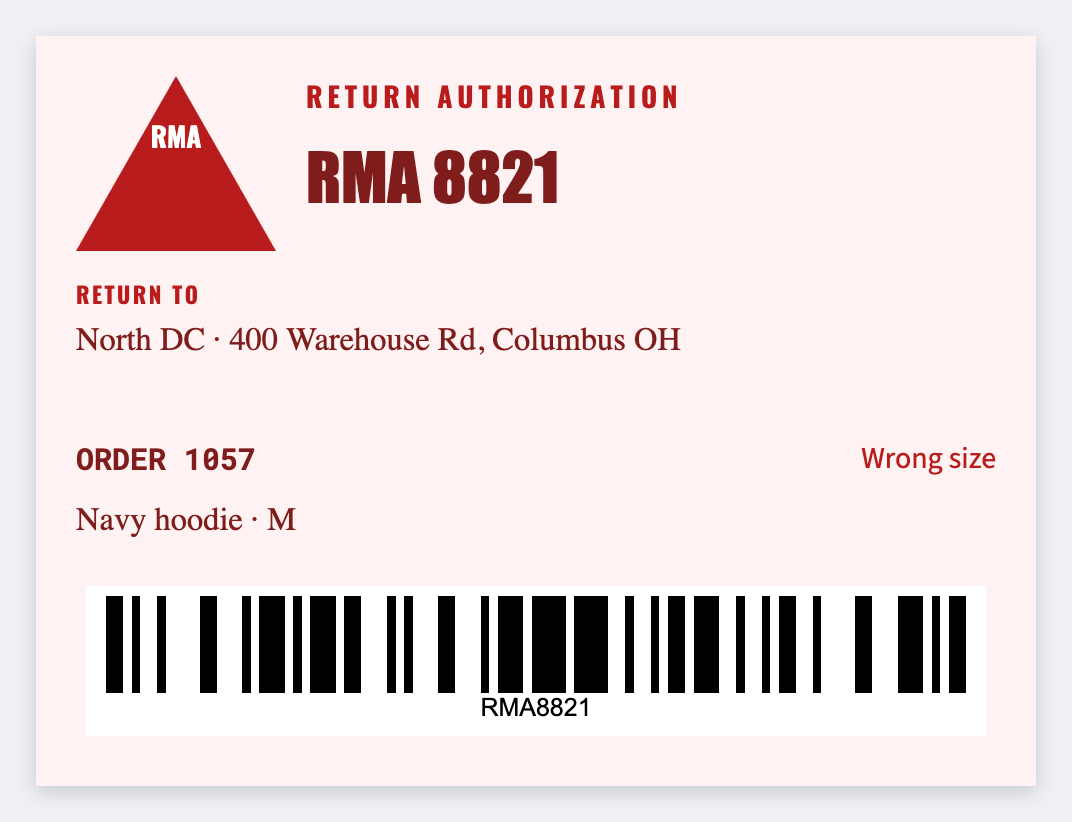
You can make RMA return labels in the free label maker. Put RMA id, sku, and reason in a sheet, set 4x3 or 4x6, map {{rma}}, and print. Buy postage from the carrier. Don't invent a tracking barcode.
Good to know: This is a pack face. Official return postage PDFs print as issued.
How to make RMA return labels
- Open the RMA return template. No signup.
- Put rma, sku, reason, and optional order on each Excel row.
- Set 4x3 or 4x6. Map {{rma}} large, then {{sku}} and {{reason}}.
- Preview two RMAs. Print the pack. Print the carrier PDF separately.
Two stickers
One RMA face you control. One postage PDF from the carrier. Don't redraw the postage barcode here.
Print or save
Got a Zebra? Print with Browser Print at the printer's DPI. No Zebra? Print from this computer, or download PNG, JPG, SVG, PDF, or ZPL. Save JSON if you want to open the layout again later.
Print the RMA face
Id and reason from the sheet. Postage stays with the carrier.
Open RMA return template