How to make employee name badges from a roster
Do this in the free label maker: app.mylabelmaker.com. No signup. Design the label, then print to a Zebra or download PNG, PDF, or ZPL.
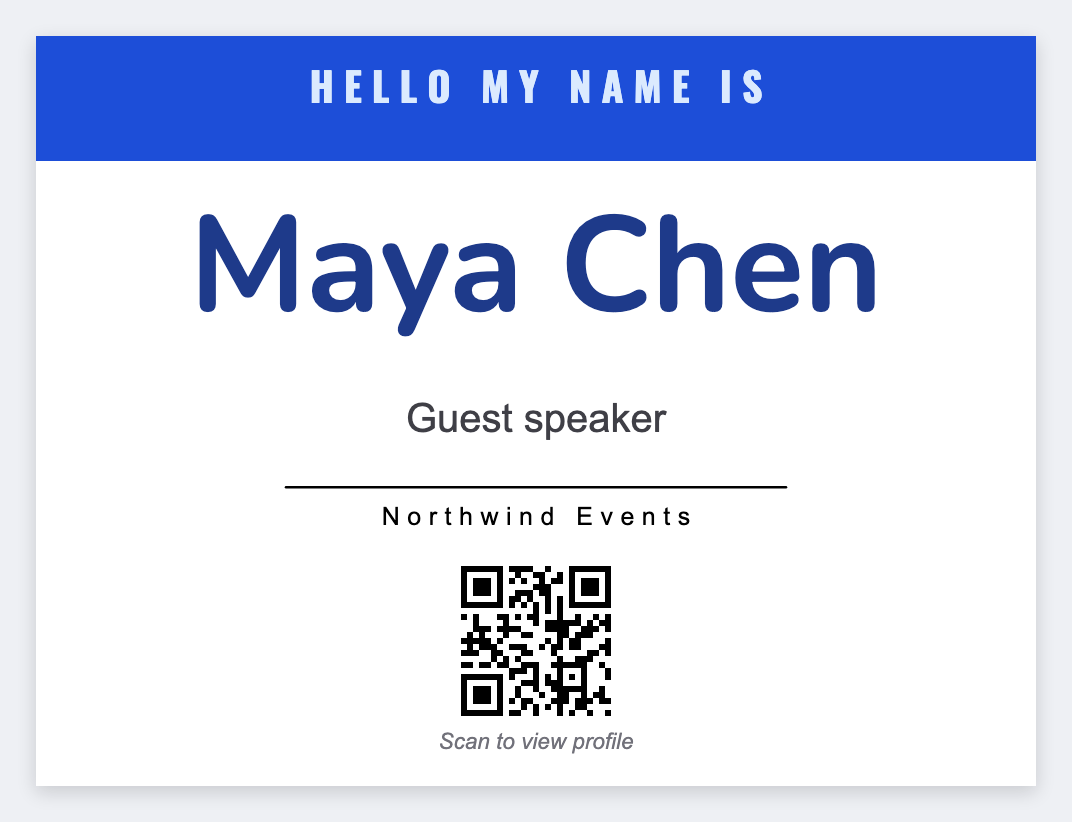
You can make employee name badges without a badge vendor. Put staff in a sheet, open the free label maker, map {{name}} and {{role}}, add the logo, then print. No signup. Same face for every hire this year. Don't print secrets on a visible badge.
Good to know: Don't print employee IDs you treat as secrets, or door codes, on a visible badge.
How to make employee name badges
- Open https://app.mylabelmaker.com. No signup. 3x2 or 4x3 works for most clips.
- Export HR or a simple roster: name, role, department.
- Add the logo, {{name}} large, {{role}} under it.
- Preview two people. Print on thermal stock or export PDF.
New hires later
Save the JSON. Next month you only add a row and print quantity 1. You don't rebuild the layout in Word.
Print or save
If you have a Zebra, print from this computer with Browser Print at the printer's DPI. If you don't, download PNG, JPEG, SVG, PDF, or ZPL. JSON keeps the layout so you can open it later.