Print Amazon FNSKU labels on a Zebra
FNSKU barcodes identify your items inside Amazon FBA. This guide is the unit sticker, not the shipping face on the Amazon box. You export the codes, map them to a barcode, and print on a Zebra from this computer.
Pair this with the broader Amazon FBA labels guide for carton/shipment labels. FNSKU = unit stickers; 4×6 = boxes going into Amazon.
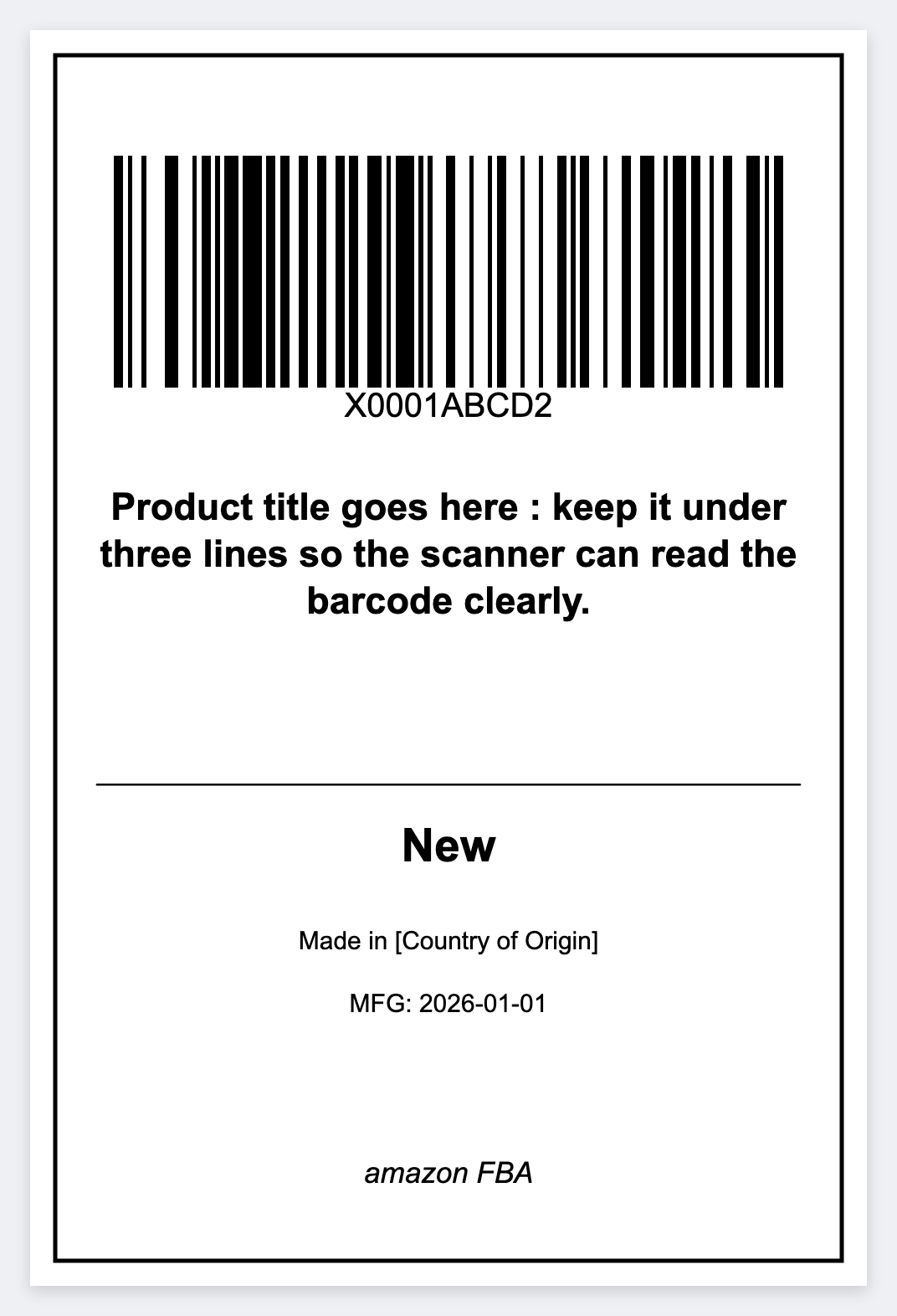
Typical FNSKU label size on a Zebra
- 2×1 or 2.25×1.25 (most common for unit labels
- 1.5×1) smaller products / jewelry-style packs
- Use 203 DPI unless your printer is 300 DPI and you design for 300
Stock ideas: shop 2×1 and 2.25×1.25 rolls. Size chart: thermal sizes.
How to print FNSKU labels on a Zebra
- In Seller Central / your prep tool, export the shipment or listing FNSKUs with title/SKU quantities.
- Save as CSV with columns like
fnsku,title,condition,qty. - Open https://app.mylabelmaker.com. No signup.
- Set artboard to 2×1 (or your stock size) and correct DPI.
- Add a barcode element mapped to
{{fnsku}}(CODE128 is typical) plus human-readable FNSKU text and short title. - Import CSV, preview, print the quantity you need (duplicate rows or print count per SKU as required by your process).
Full mail-merge mechanics: batch print labels.
Amazon compliance tips
- Cover or remove competing scannable barcodes (UPC) when Amazon requires FNSKU-only labeling.
- Print dark, high-contrast barcodes with adequate quiet zones.
- Do not scale barcode images. Use native barcode objects.
- Test-scan before labeling an entire shipment.
mylabelmaker helps you design and batch your FNSKU data. Always follow current Amazon FBA labeling policies for placement, language, and which ASINs require labels.
Hardware that works well
- 4" desktops (ZD420/ZD421) for both FNSKU and 4×6 carton work
- 2" desktops (ZD411) dedicated to product stickers
- Browser Print setup: guide
Print these FNSKU stickers
No install for design. Print via Browser Print on Mac or Windows. No signup.
Open Amazon FBA template